
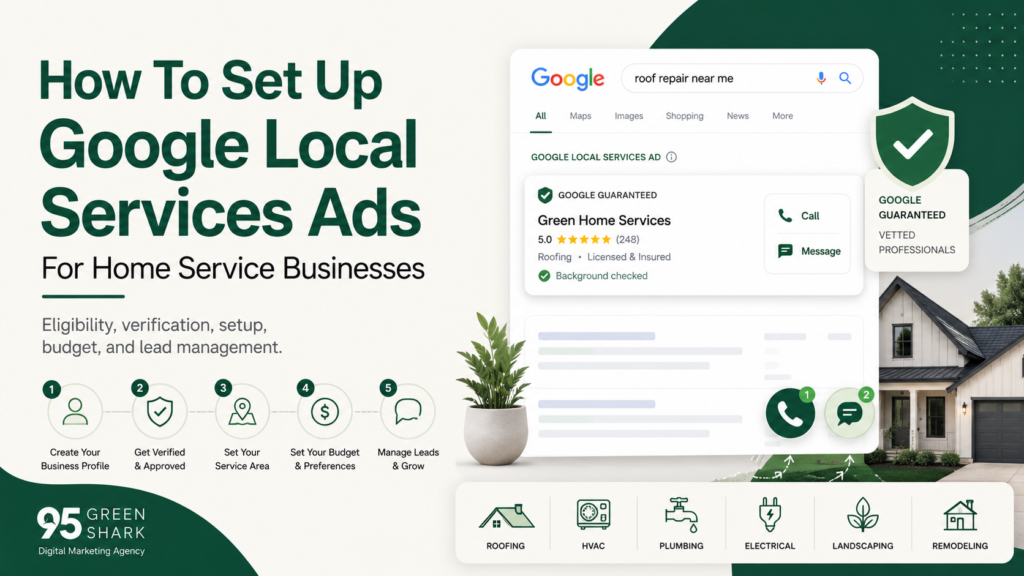
How To Set Up Google Local Services Ads (LSA) For Home Service Businesses
Google Local Services Ads (LSA) help eligible home service businesses appear prominently in local search and pay for valid leads instead of ordinary website clicks. But the crucial thing to understand here is that you have to be eligible.
Roofing, HVAC, plumbing, electrical, landscaping, flooring, remodeling, restoration, and cleaning businesses may need to confirm eligibility, connect the correct Google Business Profile, complete screening and verification, upload licenses or insurance, select accurate job types and service areas, and choose a Local Services Ads budget and bidding strategy.
This guide explains how to set up Google Local Services Ads from start to finish, manage incoming leads, improve LSA performance, and troubleshoot common approval or delivery problems so your home service business can turn local search visibility into qualified inquiries and booked work.
What Are Google Local Services Ads (LSA), And Is Your Business Eligible?
Google Local Services Ads are paid listings that help eligible local service providers appear prominently when nearby customers search for services they offer.
Potential customers can view the business profile and contact the provider directly through phone calls or messages. Depending on the category and available features, customers may also be able to book from the Local Services experience.
Unlike standard Google Search Ads, where advertisers usually pay when someone clicks, Local Services advertisers generally pay for valid leads related to their approved services. Google says the profile may show details such as services, service area, hours, reviews, photos, phone information, and verification status. (Google Local Services Help) (Getting Started With Local Services Ads)
How Are Local Services Ads Different From Standard Google Search Ads?
Both can place a home service business in front of people actively looking for help, but they work differently.
| Local Services Ads | Standard Google Search Ads |
| Primarily charge for valid leads | Primarily charge for clicks |
| Available only to eligible categories and markets | Available to a much wider range of advertisers |
| May require screening and verification | Does not generally require LSA screening |
| Uses a Local Services business profile | Usually sends visitors to a website or landing page |
| Customers may call or message directly | Customers usually click through to another destination |
| Service areas and job types influence eligibility | Keywords, targeting, ads, and landing pages provide greater campaign control |
Neither option is automatically better.
Local Services Ads can create a shorter path between a local search and a direct inquiry. Standard Search campaigns provide more control over keyword targeting, ad messaging, landing pages, audience settings, and campaign structure.
As explained in our guide to Google Ads vs. local SEO for quote-based businesses, the right channel depends on the type of demand you want to capture, the control you need, and how prepared your business is to convert that visibility into booked work.
How Do You Check Whether Your Business Is Eligible?
Before collecting documents or setting a budget, confirm four things:
- Local Services Ads are available in your market.
- Your exact service category is supported.
- Your company genuinely performs the services you plan to advertise.
- You can complete the verification requirements for that category.
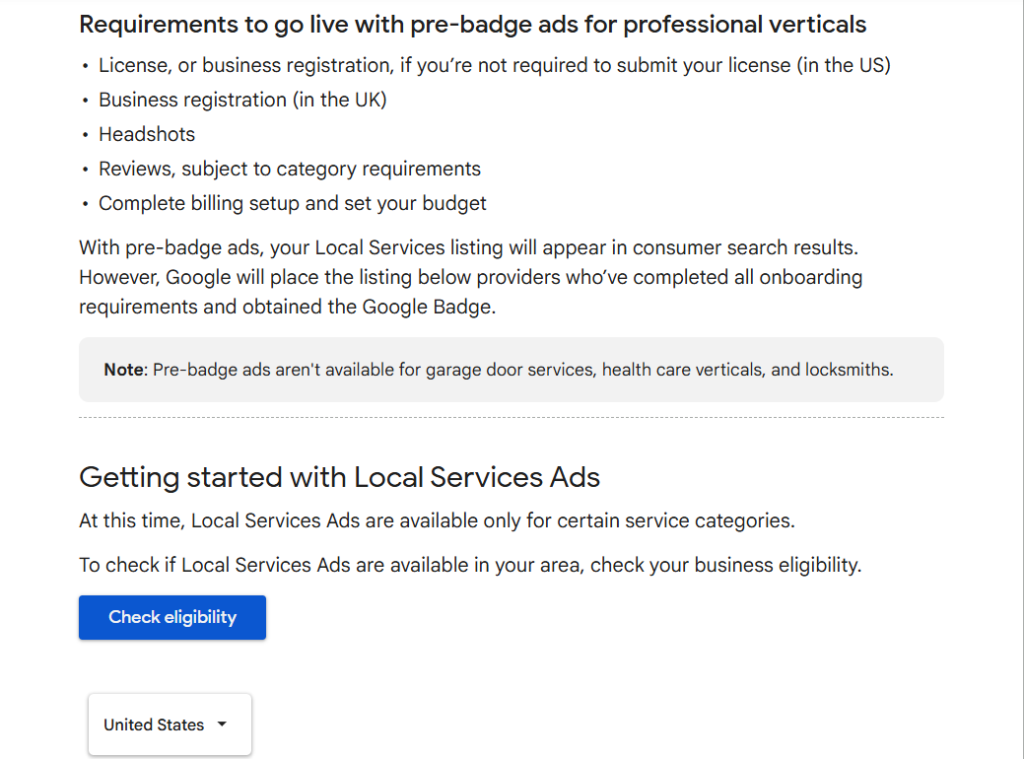
Google makes clear that availability depends on both the business category and location. The safest approach is to use Google’s current eligibility checker rather than relying on a permanent list in an article, since supported industries and markets can change. (Getting Started With Local Services Ads)
This also prevents a common mistake: selecting a loosely related category merely because the business’s preferred category is unavailable. Your profile, verification, and advertised services should accurately represent the work you perform.
What Does The Google Verified Badge Mean?
Google now uses the Google Verified badge for advertisers that complete the applicable Local Services screening and verification requirements.
The exact checks can vary by service category and region. They may include licensing, insurance, business registration, identity verification, or background checks. (How Providers Qualify)
New advertisers must complete the required verification process to receive the Google Verified badge. Google has also discontinued the money-back guarantee previously associated with the older Google Guarantee badge, so businesses should not promote Google Verified as a customer reimbursement promise. (About The Google Verified Badge)
Passing verification allows Google to confirm important details about the provider. It does not guarantee first position, unlimited leads, or that every customer who contacts the business will book a job.
What Should You Prepare Before Creating The Account?
Do not begin setting up Local Services Ads with scattered documents and uncertain business details.
Google may compare information across your Local Services Ads account, Google Business Profile, licenses, insurance documents, and verification submissions. Preparing everything first can reduce avoidable delays and conflicting information.
1. Make Sure Your Google Business Profile Is Ready
Local Services advertisers must have a public, verified Google Business Profile. Google matches the Local Services Ads account with the Business Profile to confirm that authorized users are managing the ads, calls, and messages.
Before creating the account, check:
- Business name
- Primary business category
- Address or service-area setup
- Phone number
- Website
- Business hours
- Profile ownership or manager access
- Verification status
The information should represent the real business accurately.
Do not add cities, services, or keywords to the business name merely to influence visibility. If the registered company name is Summit Roofing, the profile should not suddenly become Summit Roofing Denver Roof Replacement Experts for advertising purposes.
Also confirm that the Google account being used for setup has access to the correct Business Profile. Connecting the wrong branch, an old profile, or a duplicate listing can complicate verification.
2. Gather The Information Google May Ask For
Screening requirements vary by business category and region. Depending on the business, Google may require licenses, insurance, identity verification, business registration, background checks, or information about fieldworkers.
That does not mean every advertiser completes every check.
A plumber in one state may face different licensing requirements from a landscaper, cleaner, or flooring company in another market.
Prepare the following before starting.
Business Information
- Legal business name
- Trading name, where applicable
- Business phone number
- Website
- Physical address or service-area details
- Business hours
- Services provided
Verification Documents
- Professional or trade license numbers
- License expiration dates
- Insurance certificate
- Business registration documents
- Owner identification, where requested
- Clear scans or photographs of all documents
Google’s upload process may require the business name, license number, license type, expiration date, and an attached copy of the document. Insurance proof may also need to be uploaded through the Business Verification section of the account.
Account And Lead-Management Access
- Google account with Business Profile access
- Valid payment method
- Email address for account notifications
- Phone number that will receive leads
- Staff member responsible for answering calls and messages
That last item matters more than many businesses realize.
There is little value in activating Local Services Ads if nobody knows who will answer the calls, respond to messages, or record whether an inquiry became a booked job.
3. Check That Names, Addresses, And Documents Match
Consistency does not mean every field must be worded identically in every situation. A business may legally trade under a different public-facing name.
But legitimate differences should be understandable and supported.
For example:
- Google Business Profile: Summit Heating & Cooling
- Insurance certificate: Summit Mechanical Services LLC
- Website footer: Summit HVAC
That may be legitimate, but Google may need enough information to confirm that all three refer to the same company.
Problems are more likely when:
- The license belongs to a different business.
- The insurance document uses an unrelated company name.
- The address does not match the operating location.
- An expired document is submitted.
- The uploaded image is blurry or incomplete.
- The account is connected to the wrong Google Business Profile.
Google’s screening policies require businesses to complete applicable entity, license, insurance, identity, and background checks before they can serve ads.
Resolve real discrepancies before submitting the account. Repeatedly uploading conflicting documents is unlikely to make verification easier.
4. Use This Preparation Checklist
Before creating the Local Services Ads account, confirm that:
- Your Google Business Profile is public and verified.
- You have owner or manager access.
- Your business name and contact details are accurate.
- Your service area is set correctly.
- Your licenses and insurance are current.
- Document scans are clear and complete.
- Legal and trading names can be connected logically.
- A payment method is available.
- Someone is responsible for managing incoming leads.
The goal is simple: begin verification with information that is complete, current, and defensible.
How Do You Create And Verify A Local Services Ads Account?
Once you have confirmed eligibility and gathered the required information, you can begin creating the account.
The exact order of the screens may vary by service category, location, and account, but the setup usually follows the same general sequence.
Step 1: Start The Local Services Ads Signup Process
Begin on Google’s Local Services Ads signup page.
You will typically be asked to enter or confirm:
- Country
- Business location
- Service category
- Basic business information
Google uses the category and location to determine whether Local Services Ads are available for that type of business in that market. (Getting Started With Local Services Ads)
Choose the category that most accurately describes the work you perform.
Do not select a loosely related category simply because it appears eligible. The category affects verification requirements, available job types, and the searches your business may qualify for.
Step 2: Connect The Correct Google Business Profile
Google may show one or more Business Profiles that appear to match the company.
Select the profile that represents the exact business or location being advertised.
The Google account completing the setup should have owner or manager access to that profile. If access is missing, it may need to be requested before the Local Services Ads account can be fully connected and approved. (How Providers Qualify)
Avoid:
- Creating a duplicate Business Profile unnecessarily
- Connecting another branch’s listing
- Selecting an old or closed location
- Using an employee’s personal listing
- Connecting the wrong service-area business
For a multi-location company, each location should be connected carefully so its phone number, address, service area, and verification documents match the correct operation.
Step 3: Complete The Local Services Business Profile
Next, enter or confirm the information customers may see in the Local Services Ads profile.
This can include:
- Business hours
- Service areas
- Services and job types
- Business phone number
- Business description
- Business highlights
- Photos
These settings do more than make the profile look complete.
They help Google understand:
- Which services you provide
- Where you provide them
- When your business is available
- Which customer searches may be relevant
For example, an HVAC company that provides AC repair but does not install boilers should not select boiler installation merely to broaden exposure.
The profile should reflect the work the company genuinely wants and is qualified to perform.
Step 4: Complete Every Screening And Verification Requirement
Open the verification section of the account and work through every requirement shown.
Depending on the business category and location, Google may request:
- Business registration
- License verification
- Insurance verification
- Owner identity verification
- Background checks
- Fieldworker checks
- Google Business Profile affiliation
Google explains that screening requirements vary by category and market, so one home service business may see a different checklist from another. (Screening And Verification)
Treat each item as a separate approval requirement.
A status such as Submitted does not mean the item has been approved. It usually means Google or its screening partner has received the information and is reviewing it.
Check the dashboard for statuses such as:
- Pending
- Approved
- Rejected
- Expired
- Action required
If Google requests another document or clearer information, respond through the existing verification process rather than starting the account again.
Step 5: Upload Licenses And Insurance Carefully
Where required, enter the requested details exactly as they appear on the document.
That may include:
- License holder
- License type
- License number
- Issuing authority
- Expiration date
- Insurance provider
- Policy dates
Upload clear, complete copies.
A cropped image, unreadable number, expired certificate, or document belonging to another legal entity can delay approval.
If the public business name differs from the legal entity on the license or insurance certificate, make sure the relationship between them can be verified.
Step 6: Add Billing Information
Before the account can begin receiving paid leads, Google will require a valid billing setup.
Add the appropriate payment method and confirm that:
- The billing name is correct
- The card or payment method is active
- The account has no unresolved billing restrictions
- The person managing the account can monitor spend and charges
Adding billing does not mean the ads will immediately begin running. The business must still complete the applicable verification and approval requirements.
Step 7: Review The Account Before Launch
Before turning the ads on, review the setup from the customer’s perspective.
Confirm that:
- The correct Business Profile is connected
- The phone number reaches the right team
- Business hours are accurate
- Service areas are realistic
- Only relevant job types are selected
- Photos represent the real business
- Licenses and insurance are current
- Billing is active
- Someone is ready to handle incoming leads
A small mistake at this stage can produce poor-fit leads later.
For example, selecting counties the business does not actually serve may create inquiries that cannot be accepted. Using the wrong phone number may cause paid leads to go unanswered.
Step 8: Wait For Final Approval
The time required for approval varies.
It can depend on:
- The number of checks required
- Whether background screening applies
- Whether submitted documents are clear
- Whether licenses or insurance need manual review
- Whether Google requests additional information
Do not promise yourself or your team that approval will take a specific number of days. Instead, monitor the verification dashboard and respond promptly to any request for action.
Most importantly: Do not create multiple Local Services Ads accounts because the first one is still pending.
That can create duplicate records and make the process more confusing.
First check for:
- Incomplete requirements
- Rejected documents
- Expired licenses
- Insurance problems
- Business Profile access issues
- Category or location ineligibility
- Billing restrictions
Once all required checks are approved, the correct Google Business Profile is connected, and billing is ready, the account can move toward activation. (Google Business Profile Affiliation)
How Should You Set Services, Locations, Hours, Budget, And Bidding?
Approval only makes the account eligible to run. It does not guarantee that the setup will attract the right leads.
The services, service areas, schedule, budget, and bidding strategy all influence who may see the ads and how much opportunity the account can capture.
Choose Only The Job Types You Actually Want
Local Services Ads uses job types to help determine which searches may trigger the profile.
An HVAC company might genuinely offer:
- AC repair
- AC installation
- Furnace repair
- Heating installation
- HVAC maintenance
If it does not provide duct cleaning, boiler repair, or commercial refrigeration, those job types should not be selected simply to increase exposure.
A wider list can create more opportunities, but it can also produce inquiries the business cannot serve.
Google allows advertisers to edit job types inside Profile & Budget and recommends selecting the options that accurately apply to the business. (Google Local Services Help)
The goal is not maximum visibility.
It is relevant visibility.
Define A Service Area You Can Serve Profitably
Your service area helps determine where the ads may appear.
Choose locations your team can reach consistently without damaging scheduling, travel time, or profit margins.
A plumber may cover one metropolitan area and nearby suburbs.
A roofing company may work across several counties because its projects justify longer travel.
A landscaper may need a smaller service area because daily crew movement, fuel, and equipment transport affect profitability.
Avoid both extremes:
Too narrow: The account may miss nearby customers the business could serve.
Too broad: The account may generate leads from areas the business does not want to travel to.
Google says service areas and job types help determine where Local Services Ads can appear and which searches can make the ad eligible. (Google Local Services Help)
A simple test is:
Would we confidently accept and profitably complete this job if the customer called today?
If the answer is no, that location probably should not be included.
Separate Business Hours From The Ad Schedule
These settings are related, but they do not mean exactly the same thing.
Business hours tell customers when the company is open.
Ad scheduling controls when the Local Services Ad is eligible to appear.
Google allows businesses to run ads all day or select particular days and times. It specifically notes that advertisers can schedule ads for periods when they are able to respond to customer calls promptly. (Google Local Services Help)
That matters because a lead is less valuable when nobody answers.
A plumbing business offering genuine 24-hour emergency service may reasonably advertise overnight.
A remodeling company that only responds during office hours may be better off using a more controlled schedule.
Message leads can still provide another contact path, but they should not become an excuse to leave inquiries unanswered for long periods.
Set A Budget Based On Business Capacity, Not Guesswork
Local Services Ads uses an average weekly budget.
Some weeks may spend less than that target, while others may spend more depending on demand. Google says the account will not exceed its monthly maximum, calculated from the average weekly budget. (Google Local Services Help)
Do not choose the budget by copying another contractor.
Instead, consider:
- Expected cost per lead
- Desired weekly lead volume
- Average job value
- Lead-to-appointment rate
- Close rate
- Gross profit
- Crew capacity
- Ability to answer and follow up
For example, a restoration company handling high-value emergency projects may tolerate a higher lead cost than a cleaner selling smaller recurring services.
The business should also avoid buying more leads than the team can realistically handle.
A larger budget is not useful if calls go unanswered, estimates are delayed, or crews are already full.
Choose The Bidding Strategy That Matches The Account
Google currently offers several bidding approaches for Local Services Ads.
Maximize Leads
With Maximize Leads, Google automatically sets bids to try to generate the most leads possible within the available budget.
Google currently recommends this automated strategy for optimal performance. It also recommends setting a budget capable of supporting roughly 10 leads per week, although that is a platform recommendation—not a promise that every business will receive 10 leads or that every small advertiser must spend at that level. (Google Local Services Help)
This strategy may make sense when the business:
- wants more lead volume
- has enough budget and capacity
- does not need strict manual control over every lead bid
- has a reasonably complete and competitive profile
Target Cost Per Lead
With Target Cost Per Lead, Google adjusts bids while trying to achieve the advertiser’s chosen average lead cost.
The target is an average, not a fixed price for every lead.
Google may charge more for some leads and less for others while attempting to reach the target over time. (Google Local Services Help)
Be careful with targets that are far below realistic market prices.
An extremely low target may reduce the account’s ability to compete and limit lead volume.
A sensible target should reflect:
- historical lead costs
- lead quality
- close rate
- booked-job value
- profit margin
Max Per Lead
With Max Per Lead, the advertiser sets the highest amount they are willing to bid for an individual lead.
This creates a harder ceiling and gives the business more control.
However, Google explains that if the maximum is below what is needed to compete for available leads, the account may miss opportunities. (Google Local Services Help)
This option may suit advertisers that:
- understand their economics well
- want stricter bid control
- can tolerate lower lead volume
- know the maximum amount a lead can cost before profitability becomes difficult
Do Not Judge The Setup By Lead Volume Alone
The correct settings are not necessarily the ones that produce the most leads.
A better account attracts leads that:
- match the services offered
- come from profitable areas
- arrive when the business can respond
- fit the company’s job-value targets
- have a realistic chance of becoming booked work
That leads to a more useful principle: Set Local Services Ads around the work you want, the areas you can serve, and the leads your team can actually convert—not around the largest possible reach.
What Should You Do After The Ads Start Running?
Getting approved is not the finish line.
Once your Local Services Ads begin generating calls, messages, or booking requests, the quality of your lead handling starts to matter just as much as the campaign setup.
Respond To Leads Quickly
Potential customers may contact your business through:
- Phone calls
- Messages
- Booking options, where available
Google’s lead inbox allows advertisers to review inquiries, respond to messages, listen to eligible recorded calls, update lead statuses, and track appointments or booked jobs. Google may use a forwarding number for phone leads, so your team may hear “Call from Google” when an LSA inquiry comes through. (Google Local Services Help)
Make sure the people answering your phones know what that means.
A legitimate lead should not be ignored because an employee assumes the unfamiliar number is spam.
Build A Clear Lead-Handling Process
Someone should be responsible for every inquiry from the moment it arrives.
A practical workflow looks like this:
- Monitor calls and messages.
- Respond as quickly as reasonably possible.
- Confirm the requested service.
- Check whether the customer is inside your service area.
- Decide whether the opportunity is qualified.
- Schedule the service call, consultation, or estimate.
- Record the outcome in the LSA account or your CRM.
- Track the quote, booked value, and eventual revenue.
For example, a roofer may receive a lead from someone asking about a minor repair outside its service area. That is still a lead, but it may not be a qualified opportunity for that business.
Local Services Ads do not eliminate the need for sales follow-up. They simply create another route through which potential customers can contact you.
Track More Than The Number Of Leads
The meaningful path is:
Lead → Qualified Lead → Appointment → Estimate → Booked Job → Revenue
That distinction matters.
A campaign generating 40 leads is not necessarily performing better than one generating 20. If the smaller campaign produces more appointments, higher-value quotes, and more booked work, it may be the stronger investment.
Track:
- Total leads
- Charged leads
- Qualified leads
- Appointments
- Estimates or quotes
- Booked jobs
- Revenue
- Cost per booked job
- Close rate
Google’s reporting tools can show lead and spend activity, but the business still needs an internal system for connecting those leads to actual sales outcomes. (Google Local Services Help)
This is why visibility alone is never enough. As explained in our guide on how to market a countertop business, marketing works best when visibility connects to trust, conversion, and follow-up.
That same principle applies to roofers, plumbers, HVAC companies, landscapers, remodelers, cleaners, and other home service businesses.
Pause The Ads When You Cannot Handle More Work
More leads are not always helpful.
If your team is fully booked, your estimators are overwhelmed, or nobody is available to respond properly, continuing to pay for inquiries may waste money and frustrate potential customers.
Pause or reduce activity when:
- Crews are at capacity
- Calls are going unanswered
- Estimates are heavily delayed
- A seasonal backlog is already too large
- The business cannot serve additional locations
- Key staff members are unavailable
It is better to pause the ads temporarily than to keep buying leads the business is not operationally ready to convert.
The strongest Local Services Ads account is not the one generating the largest number of contacts. It is the one consistently turning the right inquiries into profitable booked work.
How Can You Improve Local Services Ads Performance?
Passing verification does not guarantee the top position or a steady flow of leads.
Google says Local Services Ads are ranked through an auction that considers both bid and overall profile quality. Factors can include responsiveness, relevance to the customer’s search, reviews, average response time, high-quality images, completed verification checks, and other profile information that may influence user preference.
Strengthen Your Review Profile
Reviews influence both trust and visibility.
Google states that star rating and review count affect Local Services Ads ranking. Providers with stronger ratings and more reviews also tend to stand out more clearly and typically book more jobs.
Use an ethical review process:
- Ask after completed work.
- Send customers the correct review link.
- Make the request easy.
- Respond professionally to reviews.
- Never buy, invent, or manipulate reviews.
Google recommends encouraging past customers to review the business and notes that some categories may need at least five reviews before the ad can show.
Improve Your Responsiveness
A lead becomes less valuable when nobody answers.
Missed calls can hurt responsiveness, and Google says consistently fast response times may improve ranking and increase the business’s ability to receive leads. Message response times may also appear in the ad.
Make sure someone is responsible for:
- Answering calls
- Returning missed calls
- Replying to messages
- Confirming service and location
- Scheduling estimates
- Updating lead outcomes
Responsiveness does not mean accepting every job. It means handling each inquiry promptly enough for the customer and Google to see that the business is active and reachable.
Use Strong, Real Photos
Photos can help customers understand who you are and what to expect.
Google recommends uploading several high-quality images and says photos may contribute to improved ranking, visibility, engagement, and lead volume. In one Google experiment involving U.S. and Canadian home service providers, businesses that uploaded at least one photo potentially saw an average of 16% more leads than those without photos.
Useful images may include:
- Completed work
- Technicians or crews
- Service vehicles
- Equipment
- Business exterior
- Workshops or showrooms
Avoid irrelevant stock photography that could belong to any company.
One important detail: Google says photos already on your Google Business Profile must still be added to the Local Services Ads profile to benefit from the feature there.
Review Your Job Types And Service Areas
If the account receives almost no exposure, the setup may be too narrow. If it generates too many irrelevant inquiries, it may be too broad.
Google recommends selecting all job types the business genuinely performs and setting service areas broadly enough to reach suitable customers. But the locations still need to be realistic. Google’s policies warn that targeting unreasonably large service areas from only one or a few business locations can trigger review.
Review:
- Whether important job types are missing
- Whether irrelevant services are selected
- Whether profitable suburbs or counties are excluded
- Whether the service area includes locations the team cannot serve well
- Whether seasonal services should be added or removed
The goal is not the widest possible reach. It is enough relevant reach to generate work the business can actually accept.
Review Budget And Bidding
A campaign may struggle because:
- The budget is too low for the market
- The manual bid is not competitive
- The target CPL is unrealistically low
- The monthly spending limit has been reached
- Demand is seasonal
- The business is unavailable during important hours
Google recommends Maximize Leads as the automated bidding option for optimal performance. It also notes that providers with similar quality and budgets typically receive more leads with Maximize Leads than those not using it.
That does not mean every account should increase the budget blindly. Review whether the leads are qualified and profitable before spending more.
Improve The Whole Profile, Not Just One Setting
Local Services Ads performance is usually not controlled by one switch.
A business can have a competitive bid and still underperform because it has weak reviews, missed calls, poor photos, incomplete job types, narrow service areas, or limited availability.
A more useful way to think about optimization is: Bid competitively, build a complete profile, respond quickly, collect legitimate reviews, and make it easy for the right customers to choose you.
That combination gives the account a stronger chance of earning visibility and turning that visibility into booked work.
Why Are Your Local Services Ads Not Running Or Producing Good Leads?
A Local Services Ads account can be approved and still receive little visibility, few leads, or too many poor-fit inquiries.
The problem may be verification, billing, budget, targeting, scheduling, policy status, or the way the account is configured. Troubleshooting works best when you check each area in order instead of changing everything at once.
Check Your Verification And Policy Status
Start with the account dashboard and Policy Manager.
Look for:
- Incomplete screening requirements
- Rejected documents
- Expired licenses
- Expired insurance
- A mismatched Google Business Profile
- Missing owner or manager access
- An ad under review
- A disapproved ad
- An account suspension or policy restriction
Google says disapproved Local Services Ads cannot appear. When an ad is affected by a policy issue, advertisers can view the reason in Policy Manager, correct the problem, resubmit it, or appeal where appropriate.
Do not create another account to avoid a suspension, disapproval, or slow verification process. Google notes that related or newly created accounts may also be suspended, and duplicate accounts can create additional policy problems.
Confirm That The Campaign Can Actually Run
If verification is complete, review the campaign settings.
Confirm that:
- The ad is switched on
- Billing is active
- The account is not paused or inactive
- Budget remains available
- The monthly charging limit has not been reached
- Job types are selected
- Service areas are correct
- The ad schedule includes the current day and time
- Business hours are accurate
- The business is marked as accepting customers
- The category is still eligible in that market
Google lists inactive accounts, restrictive targeting, unavailable hours, billing problems, exhausted budgets, and disapproved ads among the common reasons Local Services Ads do not run.
Your ad also will not appear every time you search for it yourself. Local Services Ads use an auction, and visibility depends on competition, bid, profile quality, the customer’s search, location, and other factors.
Review Job Types And Service Areas
Poor lead quality often begins with inaccurate targeting.
If an HVAC company selects every available service, it may receive inquiries for work it does not perform. If a roofer targets counties several hours away, it may pay for leads that are technically within the selected area but commercially unrealistic.
Review whether:
- Irrelevant job types are selected
- Important services are missing
- The service area is too broad
- The service area is too narrow
- The business is targeting places it cannot legally or practically serve
Google says service areas and job types help determine where ads can appear and which searches can trigger them. It also warns businesses to target only locations they are genuinely able and permitted to serve.
Understand How Lead Charges And Credits Work
Not every lead that fails to become a customer is invalid.
A person may contact three plumbers, choose another company, postpone the project, reject the estimate, or stop responding. That may be disappointing, but it does not automatically mean the lead should be refunded.
Google initially assesses leads when contact occurs. Leads classified as invalid or low quality may not be charged. Charged leads can also be reassessed later and may receive an automatic credit if Google subsequently determines that they were low quality.
In the lead report, you may see statuses such as:
- Not charged
- Charged
- In review
- Credited
Google says credits are generally applied to the account balance, although the original charge may still appear on the invoice. Automated lead credits also have category and regional limitations. They are currently unavailable for healthcare verticals, tax specialists, and advertisers in EMEA.
Google also no longer supports credits simply because a lead requested a job type you did not service or came from a location you did not serve. That makes accurate job-type and service-area settings even more important.
Give Google Accurate Lead Feedback
Review every inquiry and submit honest feedback.
Inside the lead section, indicate whether the inquiry was relevant and provide accurate information about the outcome. Google says this feedback helps its systems better understand the leads that suit the business.
Do not mark a legitimate lead as poor quality simply because:
- The prospect did not hire you
- Your estimate was rejected
- The customer chose a competitor
- Nobody followed up quickly enough
- Your team missed the call
- The project was too small for your internal preferences
Lead quality and sales performance are related, but they are not the same thing.
Diagnose Poor Performance Beyond Lead Volume
A campaign may be delivering leads but still underperforming commercially.
Track the full path:
Lead → Qualified Lead → Appointment → Estimate → Booked Job → Revenue
If lead volume is healthy but booked work is weak, investigate:
- Slow response times
- Missed calls
- Weak phone handling
- Poor qualification
- Delayed estimates
- Uncompetitive offers
- Low review credibility
- Inaccurate service information
- Poor follow-up
Google’s reporting can show charged leads and spending by lead format, but your own CRM or sales process must connect those inquiries to appointments, quotes, and revenue.
This is why Local Services Ads should not operate alone. They should sit beside a stronger system that connects paid visibility, local trust, website support, conversion, and follow-up.
Use This Final Local Services Ads Checklist
Before expecting consistent performance, confirm that:
- Your business category is eligible.
- The correct Google Business Profile is connected.
- The profile is public and verified.
- Every required screening step is approved.
- Licenses and insurance are current.
- Billing is active.
- The ad is enabled.
- Job types accurately reflect the services you provide.
- Service areas are realistic and profitable.
- Business hours and ad scheduling are correct.
- The budget has not been exhausted.
- The bidding strategy fits your goals.
- Phone calls are answered or returned promptly.
- Messages are monitored.
- Reviews are requested ethically.
- Real photos have been added.
- Lead outcomes are recorded.
- Qualified leads, estimates, booked jobs, and revenue are tracked.
- Policy notifications are checked regularly.
Setting up Local Services Ads is not just opening an account and choosing a budget.
Your business must be eligible, verifiable, visible, reachable, trusted, and operationally ready to turn inquiries into booked work.
Are Your Local Services Ads Ready To Produce More Than Random Leads?
95 Green Shark helps home service businesses assess their Local Services Ads setup, local visibility, paid search strategy, website, and lead-handling path before more budget is committed.